


AI Translator: Voice & Screen
4.222.00 Reviews
App Specs
- Version
- 110_20260907
- Updated On
- License
- Free
- Downloads
- 1,000,000+
- Developer
- HKL Game Studio
- Categories
- Productivity
- Platform
- Android
Screenshots
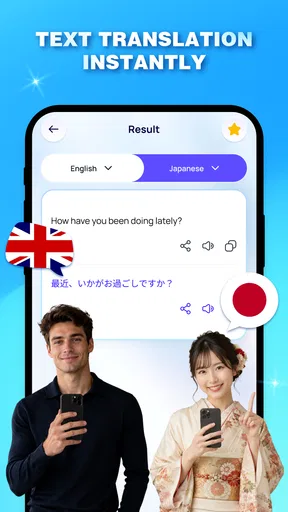
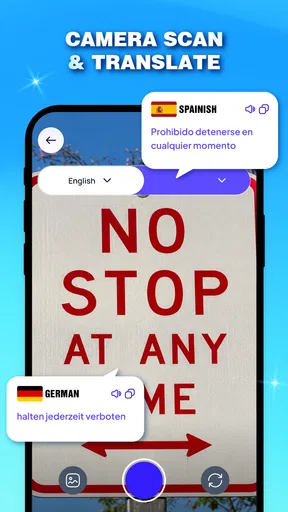
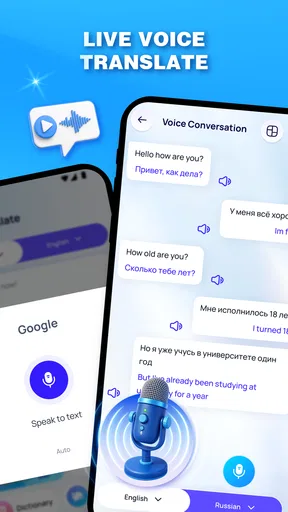
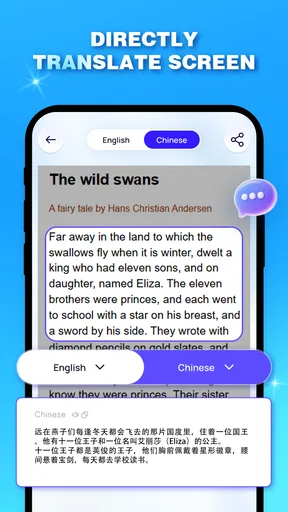
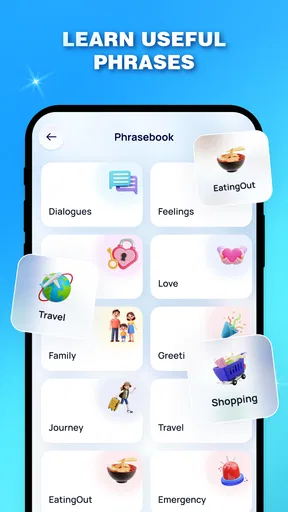
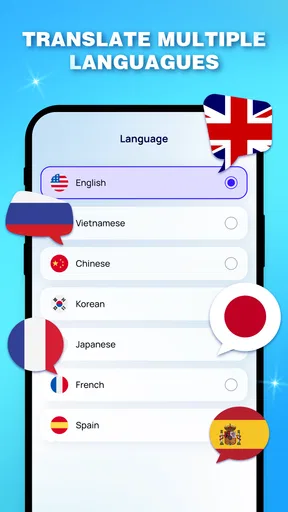
 Analysis by AppCompare
When a household shares one phone, translation needs can arrive from several directions at once: a guest asks a question, a relative receives an unfamiliar message, or someone wants to understand a label before using it. I like that AI Translator: Voice & Screen brings spoken, typed, and on-screen translation into one productivity app from HKL Game Studio. Its strongest role is as a quick first step that helps people understand one another; I would still keep a person in charge of checking anything important.
A small handoff can prevent bigger confusion
Before passing a shared phone to someone else, it helps to say what you want translated and which method to try. That little handoff matters if the phone is being used for different tasks in quick succession: one person may expect it to translate speech, while another is looking at text. Keeping each request clear makes the app easier to use without assuming that everyone has the same habits or confidence with translation tools.
I would also make the device owner’s role explicit. A guest might need help understanding a short message, but the owner should decide whether it is appropriate to open that message on a shared screen and who can see the result. That distinction is useful in a busy home, where convenience can otherwise blur the line between helping someone and exposing another person’s private conversation.
One practical way to keep the exchange comfortable is to ask the person who needs help what they want translated before opening anything. They can read a phrase aloud, type the relevant words, or point out the part of a screen that matters. This gives them a say in what is shared and avoids turning a quick translation into an unnecessary tour through someone’s messages.
One phone, several everyday translation jobs
The appeal of this app in a household is less about a grand language-learning plan and more about reducing interruptions. Someone can speak a short question, another person can check a piece of text, and a screen can be the source when the words are already inside another app. That breadth matters when family members have different habits: one may prefer speaking, while another is more comfortable copying text or pointing to what is visible.
A realistic example is a shared phone being passed around while a relative is visiting. A family member can use voice translation to help with a simple exchange, then switch to text for an address or a short instruction. If the next problem is a message displayed on the screen, screen translation offers a route that avoids retyping every line. In practice, that range makes AI Translator: Voice & Screen more convenient than keeping separate tools in mind for each input type.
There is a useful trade-off here: one app can make the first attempt faster, but a single translation interface does not make every situation equally easy. Spoken language may be unclear, text may lack context, and a screen may contain formatting or details that need a closer look. I would use it to get the gist and keep a person involved when the wording affects an important decision.
Worth Reading Before You Choose

Flipboard Shows What News Apps Must Do Beyond the Feed

Switching to Android Auto Means Rethinking Your Driving Routine

Google Calendar Makes a Crowded Week Easier to Manage

Ludo King Makes the Most of the Minutes Between Plans

Baby Panda World Brings Quick Play to Modern Phones, but Its Game Library Feels Busy

ESPN’s Live Game View Makes Following Close Games Easier
Make the shared-device handoff deliberate
For a household device, I would establish a small routine before passing the phone around. Tell the next person which translation method to use, keep the source sentence short, and check that the translated result still matches the intended meaning. This sounds basic, but it prevents a common problem: one person assumes the app is listening or translating one thing while the next person has already moved to another task.
A practical tip is to translate one thought at a time rather than dictating a long explanation. Short phrases are easier for everyone to review and easier to correct if the meaning comes out oddly. For screen-based material, focus on the particular text that matters instead of treating a translated screen as a replacement for the original. Names, dates, addresses, and amounts deserve a second look because a small mistake can change what someone does next.
That workflow is especially helpful when the phone belongs to one person but is used by several. Each user can contribute the sentence or screen they need, while the device owner remains responsible for the final check. I would not assume that a shared device automatically creates separate histories or account boundaries; families should avoid entering private conversations or sensitive material unless they are comfortable with how the phone is being used.
Set expectations before anyone relies on it
One question people naturally have is whether this can replace a human interpreter. I would say no. It is better suited to quick, low-stakes exchanges and getting an initial understanding than to medical, legal, financial, or emergency conversations. If a family member is discussing treatment, signing something consequential, or making a decision where exact wording matters, use a qualified person or a trusted official translation instead.
Another useful boundary is to decide what not to translate on a shared phone. Private messages, identity details, account information, and personal documents are poor material for casual experimentation. The app’s purpose is clear, but I would not infer privacy protections or household profiles from its translation focus. Keep sensitive content out of a shared workflow unless you have independently checked the app’s current privacy terms and are comfortable with them.
For ordinary phrases, the app can help a household move forward without turning every small question into a long search. For a long message, I would first identify the key sentence and translate that, then compare it with the surrounding context. This saves time and can expose ambiguity before anyone acts on a sentence that has been separated from its meaning.
Coordination works best when people share the task
The strongest household use is collaborative rather than hands-off. One person can speak or select the source text, another can listen to or read the result, and a third can confirm whether the translation fits the situation. This simple division of roles is valuable when the person who needs help cannot easily operate the phone themselves. The app can bridge a language gap, but the people present still supply context, tone, and common sense.
I would also agree on a simple correction habit: if the translated phrase sounds strange, rephrase the original instead of repeating it louder or adding several ideas at once. A shorter sentence, a clearer subject, or a more concrete word can make a second attempt more useful. This is a particularly practical way to use voice translation in a busy home, where background conversation and rushed speech can make the initial wording less clear.
When coordinating around a screen, keep the original visible long enough for another person to compare important details. A translated version can make a notice or message understandable at a glance, but names and instructions should be checked against the source before they are passed on. That comparison step is a small effort with a good payoff, especially when several people will rely on the same information.
Compared with the usual alternatives, this app’s main convenience is having voice, typed text, and screen translation under one roof. A built-in phone translation option may be quicker for a one-off phrase, while a dedicated dictionary can be better when someone wants definitions or to study vocabulary. A human bilingual relative remains better for nuance. I see this app as a practical middle ground for everyday comprehension, not a reason to abandon those alternatives.
Age suitability is not the same as a family setting
The app is rated for Everyone, which makes its general audience broad, and it is free to install. That does not automatically make every shared-device arrangement suitable for children. An age label is not a substitute for adult judgment about what a child is translating, whether a message is private, or whether they understand that an automated result can be wrong. I would show a younger user how to ask for help rather than encourage them to handle unfamiliar or consequential messages alone.
There is no reason to treat the app as a family-management tool. I would not expect it to coordinate household accounts, assign roles, or provide parental controls simply because several people might use one phone. If your household needs individual profiles, controlled access, or a clear separation between personal and shared activity, a service designed around those needs is a better fit. Here, coordination has to come from the people using the device.
The audience figures suggest the app has found a substantial group of users: it has over a million installs, an average rating of 4.2 from around 1,900 ratings, and 22 written reviews. I take that as useful context, not proof that every language pair or situation will work equally well. Individual results matter more than the crowd when you are deciding whether to trust a translation in a particular moment.
Version, cost, and the decision to keep it
The app is currently on version 110_20260907 and supports Android 8.0 or later. The release date is April 1, 2026. It is free to start, with in-app purchases ranging from $1.99 to $59.99 per item, so I would check what any optional purchase covers before committing. If you only need occasional translations, start with the free experience and decide from actual use whether paying adds enough value for your routine.
That pricing range is worth considering on a shared phone because one person’s purchase decision may affect everyone’s expectations. I would not assume that a purchase unlocks a particular feature or applies across multiple users without checking the in-app details. Keep the decision with the device owner, especially if children or guests may open the app and encounter purchase options.
For a less obvious but useful household test, try the same short phrase in two forms: say it naturally, then type a clearer version if the result seems off. Comparing the attempts can show whether the difficulty came from the wording or from using speech in that moment. It also gives the person being helped a chance to correct the original meaning rather than simply accepting the first output.
As a general-purpose translation helper, it is most appealing when your household often switches between spoken questions, written phrases, and text already displayed on a screen. It is less compelling if you need a rigorous professional translation workflow, want a dedicated language-learning environment, or require family account controls. Those are different jobs, and a specialized tool or human support will serve them better.
A useful household tool, with human judgment in charge
I would recommend trying it for everyday, low-stakes moments: understanding a short note, getting the gist of a message, or helping a guest express a simple request. Its mix of input types makes it easier to share around one device than a tool focused on only one kind of translation. The biggest practical improvement comes from using short phrases, checking key details against the source, and making sure everyone knows who is responsible for the phone and its contents.
My household verdict is positive but measured. AI Translator: Voice & Screen can make common language gaps less awkward, and its free entry point makes it reasonable to test on a compatible device. I would keep it as a convenience rather than a source of final answers, protect private material on shared phones, and choose a person or specialist service whenever precision has real consequences. With those boundaries, it is a sensible helper for a family or household that needs occasional translation without expecting the app to manage the people using it.
Pros
- Supports voice translation for hands-free conversations.
- Can translate text displayed on your screen.
- Useful for communicating while traveling or studying.
- Combines voice and on-screen translation in one app.
- May help users understand content in unfamiliar languages.
Cons
- Translation quality can vary by language and context.
- Voice translation may struggle with noise or unclear speech.
- Some features may require an internet connection.
- Screen translation may not work well with every app or layout.
- Subscriptions or in-app purchases may limit access to features.
FAQs for AI Translator: Voice & Screen
What can AI Translator: Voice & Screen translate?
AI Translator: Voice & Screen is designed to help translate spoken conversations and text displayed on your screen. The exact languages and translation options available can vary by app version and device, so check the language list in the app before relying on it for a particular conversation. As with other automated translators, results may be less accurate with slang, names, noisy audio, or specialized terminology.
How does voice translation work in AI Translator: Voice & Screen?
Voice translation generally involves selecting the languages, speaking into your device’s microphone, and reviewing the translated result. You may need to grant microphone access for this feature to work. For clearer results, speak at a steady pace, use short sentences, and reduce background noise. Translation should be treated as a helpful aid rather than a guaranteed word-for-word record of what was said.
Can AI Translator: Voice & Screen translate text in other apps?
The app’s screen-translation tools may help interpret text shown in other apps, but their availability and behavior depend on the version, device, and required permissions. Screen access can expose content currently displayed on your device, so review the permission request and privacy information before enabling it. If screen translation is unavailable, you may be able to use a text input or copy-and-paste option instead.
Does AI Translator: Voice & Screen work offline?
Do not assume that every feature works without an internet connection. Voice recognition, screen translation, or AI-powered processing may require online access, while some versions may offer limited offline language support. Check the app’s settings and current store listing for offline availability, supported languages, and any downloadable language packs. If you need translation while traveling, test the relevant feature before going offline.
Is AI Translator: Voice & Screen free, and what should I check before downloading?
The app may be free to install while offering paid subscriptions, in-app purchases, advertisements, or limits on certain features; pricing and terms can change. Before downloading, review the current Google Play or App Store listing for costs, supported languages, device requirements, developer details, and privacy disclosures. Also check whether microphone or screen-related permissions are requested and decide whether they suit your needs.


